Scheduling workflows
Running a workflow on a recurring schedule across a set of profiles, with or without a visible window.
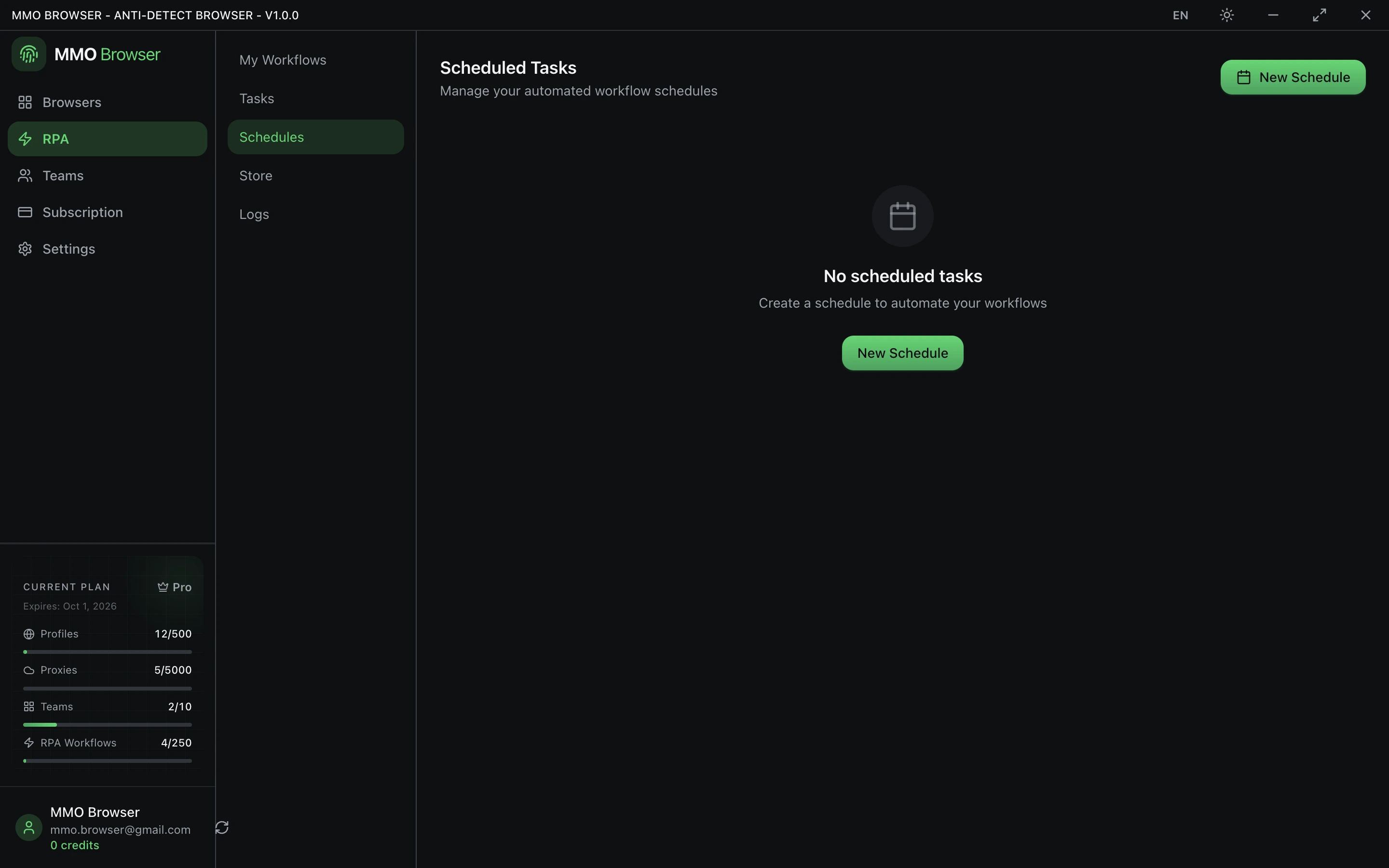
Creating a schedule
- Open the Schedules area and create a schedule.
- Choose the workflow to run.
- Choose when, either from the quick presets or with a cron expression.
- Select the profiles it should run against.
- Choose a run mode and whether the browser is visible.
When it runs
The presets cover the common cases — every minute, every 5 or 15 minutes, hourly, daily at midnight, every Monday, the first of the month. Anything else is a cron expression, which gives you the full range of recurring times.
Schedules only fire while the desktop app is running. This is a desktop automation tool, not a hosted service; nothing runs on a machine that is asleep.
Profiles and run mode
A schedule can target many profiles at once. The run mode decides what happens when it fires:
- Run all — every selected profile runs the workflow.
- Run random — one profile is picked at random each time. This is what you want for work that should look like ordinary irregular activity rather than a fleet acting in lockstep.
Visible or headless
- Visible — the browser window opens as normal. Use this while you are still building trust in a schedule, because you can see what it does.
- Headless — no window is drawn. Lighter on the machine, and it lets a schedule run without taking over your screen, but some sites treat headless browsers differently.