Browser profiles
What a profile actually is, how to create and run one, and how to move profiles between machines.
What a profile is
A profile is one identity: a fingerprint, an optional proxy, and its own isolated data directory. Two profiles on the same machine share no cookies, no local storage and no cache, and they present different hardware and software characteristics to every site they visit.
That isolation is the whole point. A site that tries to link two of your accounts has to work with two different fingerprints, two different IP addresses and two entirely separate cookie jars.
Creating a profile
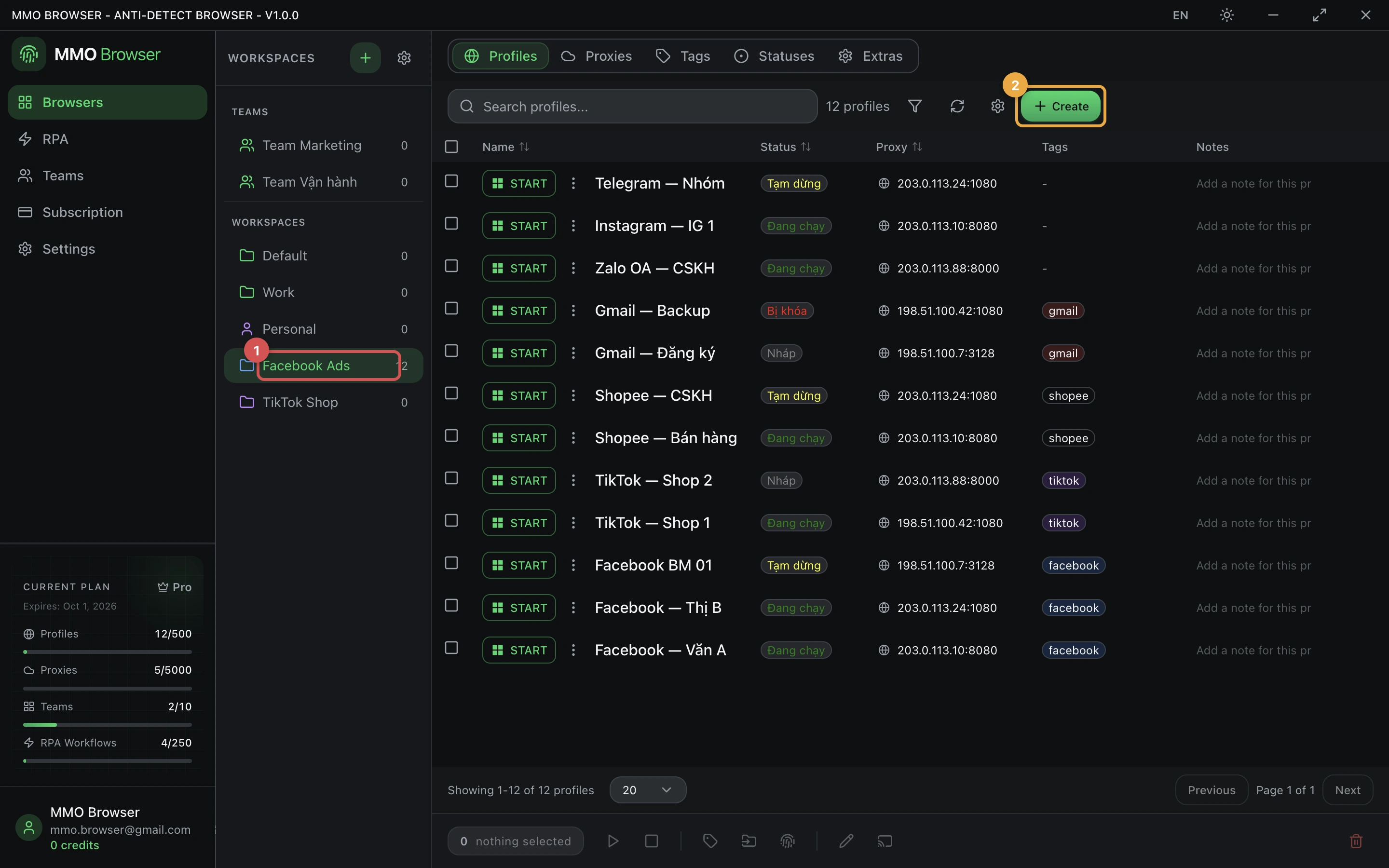
- Open the Browsers section and create a profile.
- Give it a name you will recognise in a list of hundreds — the account it holds, not "Profile 27".
- Assign a proxy, or leave it direct if you are testing locally.
- Accept the generated fingerprint, or open the fingerprint panel to pin specific values.
- Save, then press Start. The first launch of any profile creates its data directory.
A profile keeps its fingerprint for life unless you change it deliberately. Regenerating the fingerprint of a profile that is already logged in to sites is a good way to get those sessions flagged.
Finding a profile again
- Tags — free-form labels; a profile can carry several. The usual axes are platform, client and stage.
- Status labels — a small fixed set for where a profile is in your process, shown as a coloured chip in the list.
- Columns — the profile table's columns can be shown, hidden and reordered, so the list carries the fields you actually scan for.
- Workspaces — for a separation so complete you want the other profiles out of sight entirely.
Import and export
Profiles export to a file and import back, which is how you hand a set of profiles to someone outside your team or move them between accounts. Within a team, share the workspace instead — it keeps one copy rather than creating a second one that immediately starts drifting.