Installing the desktop app
Getting the app onto Windows, macOS or Linux and through its first launch.
Download and install
The browser itself only runs on the desktop — the website is for your account, billing and documentation. Download the build for your platform from the Download page.
- Windows — run the installer and launch from the Start menu.
- macOS — open the disk image and drag the app into Applications. Builds are provided for both Intel and Apple Silicon.
- Linux — use the AppImage or the package for your distribution.
First launch
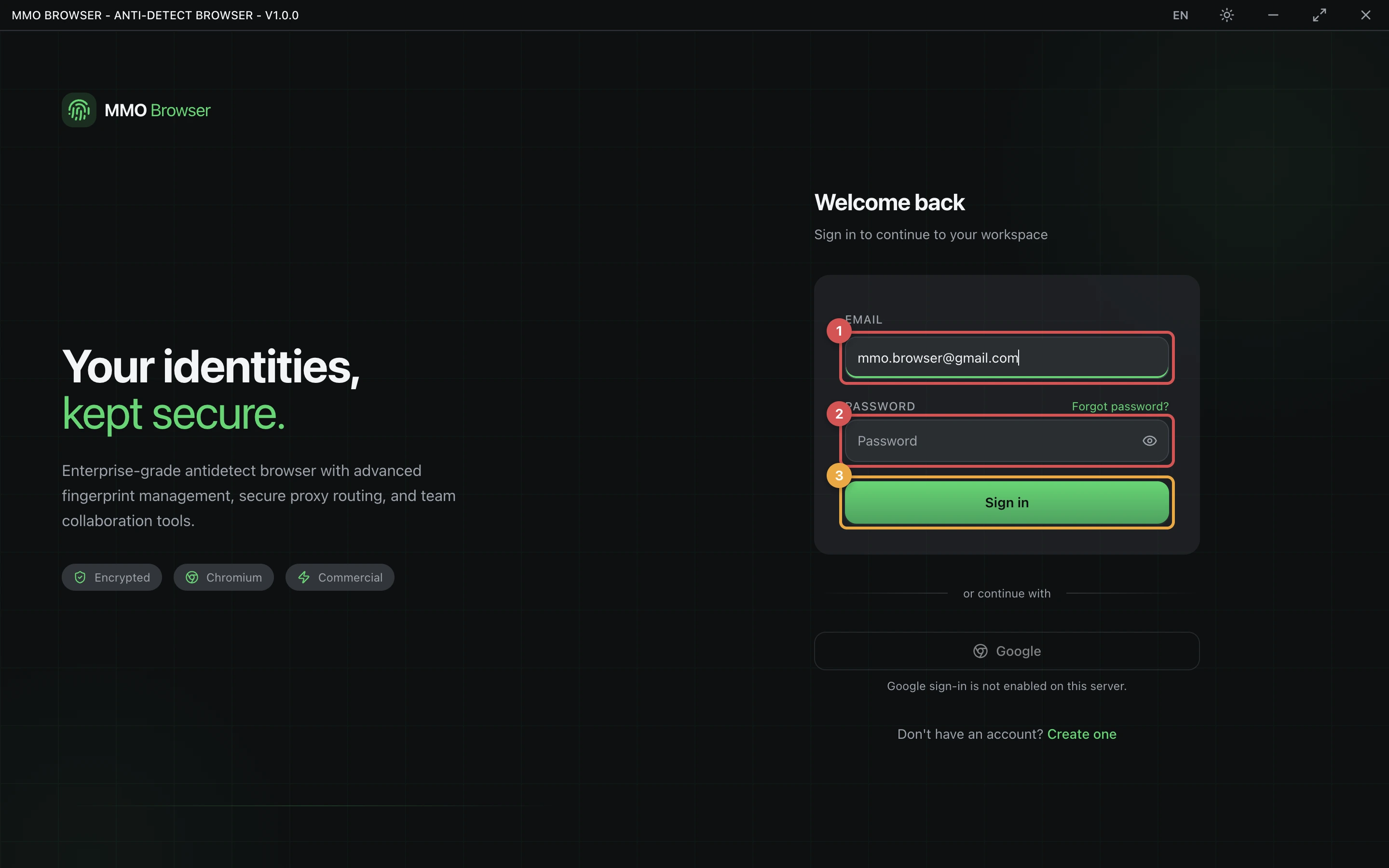
On first launch the app signs you in and then downloads its browser engine — a build of Chromium with the fingerprint layer compiled in. This is a one-time download of a few hundred megabytes and it is why the very first profile takes longer to start than every one after it.
- Sign in with the account you created on the website.
- Wait for the browser engine to finish downloading.
- Create your first profile, or import profiles you already have.
The engine is stored once and shared by every profile. Profiles differ by their fingerprint, proxy and data directory, not by having a browser each.