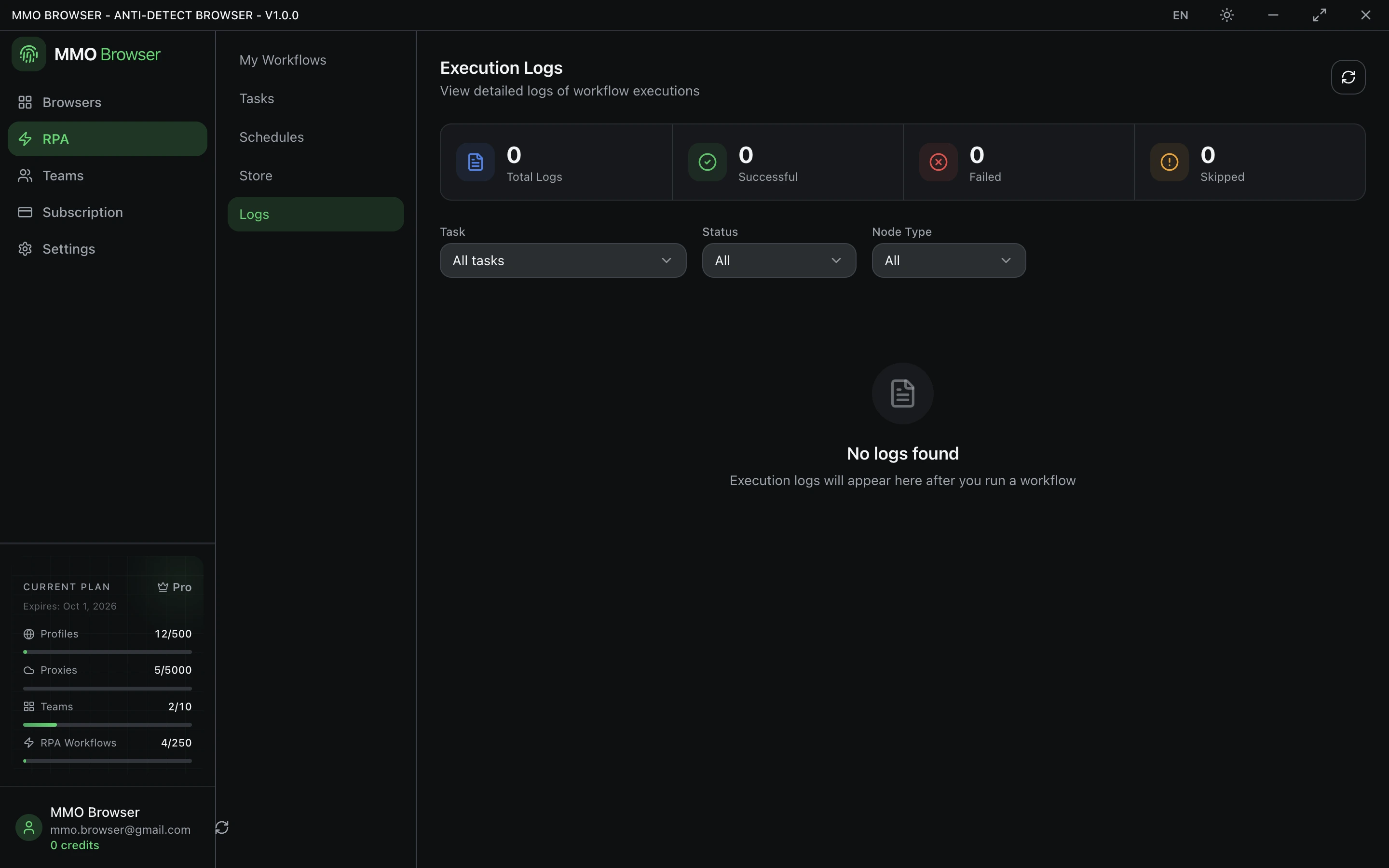
Debugging and run history
Breakpoints, testing one block, and reading the logs after a run has failed.
Stepping through a workflow
The debugger runs the workflow with you watching. Click the pause icon on any block to set a breakpoint — execution stops before that block runs, and you can look at the state before deciding to continue.
- Logs — what each block did, appearing as it executes.
- Variables — every variable and its current value, which is the fastest way to find where data stopped being what you expected.
- Breakpoints — everything you have set, so you can clear them without hunting across the canvas.
Testing one block
Select a block and test just that one against a live page, without running everything before it. This is the fastest loop for getting a selector or a piece of extraction logic right. Trigger and end blocks cannot be tested on their own, since they do not do anything by themselves.
Run history
Every run is recorded. The logs area lists past tasks with how long they took and a count of blocks that succeeded, failed and were skipped, and you can filter by task or by block type to find one case among many.
Each log entry keeps the input and output of the block, and a screenshot where one was taken. That is usually enough to tell whether a run failed because the site changed, because a proxy was down, or because the workflow was wrong.
Skipped is not the same as failed. A block inside a branch that was not taken is skipped, and that is normal — read the failed count, not the skipped one.